
Transparent Video for the Web

- Posted by: Jon Schock, Associate Creative Director
- Pronouns: He/Him
- Posted: Wednesday, May 1, 2024
While struggling to find a solution to handle alpha-transparent, live-action animations for a recent project, various options were considered. Animated GIFS? They feel outdated and lack quality. How about CSS animations? Too custom and not quite feasible given the live-action animation required for the project. After Effects animations were also pondered, but these are often best suited for vector-based needs. What about video? Surely alpha-transparent video is achievable by now. I mean, it's 2024, right? Hmm, the idea was worth exploring, but it took some doing to get there. To accomplish this remarkable feat, a few steps were necessary.
First, we needed to find a converter that could handle the task. One of the first issue we ran into is that alpha-transparent video not converted properly, can create an issue where color discrepancies exist between the background color of the webpage and the foreground video. We also required a tool that could output into the various file formats we would need for cross-browser support. Currently, Safari does not support webm. Several converters were tested and we eventually landed on Rotato, whose converter functions exceptionally well and circumvents these problems. We'll come back to Rotato in a moment. Before we can convert the video to something we can use on the web, we first need to create (or source) a transparent MOV file.
Exporting to MOV Anchor ()
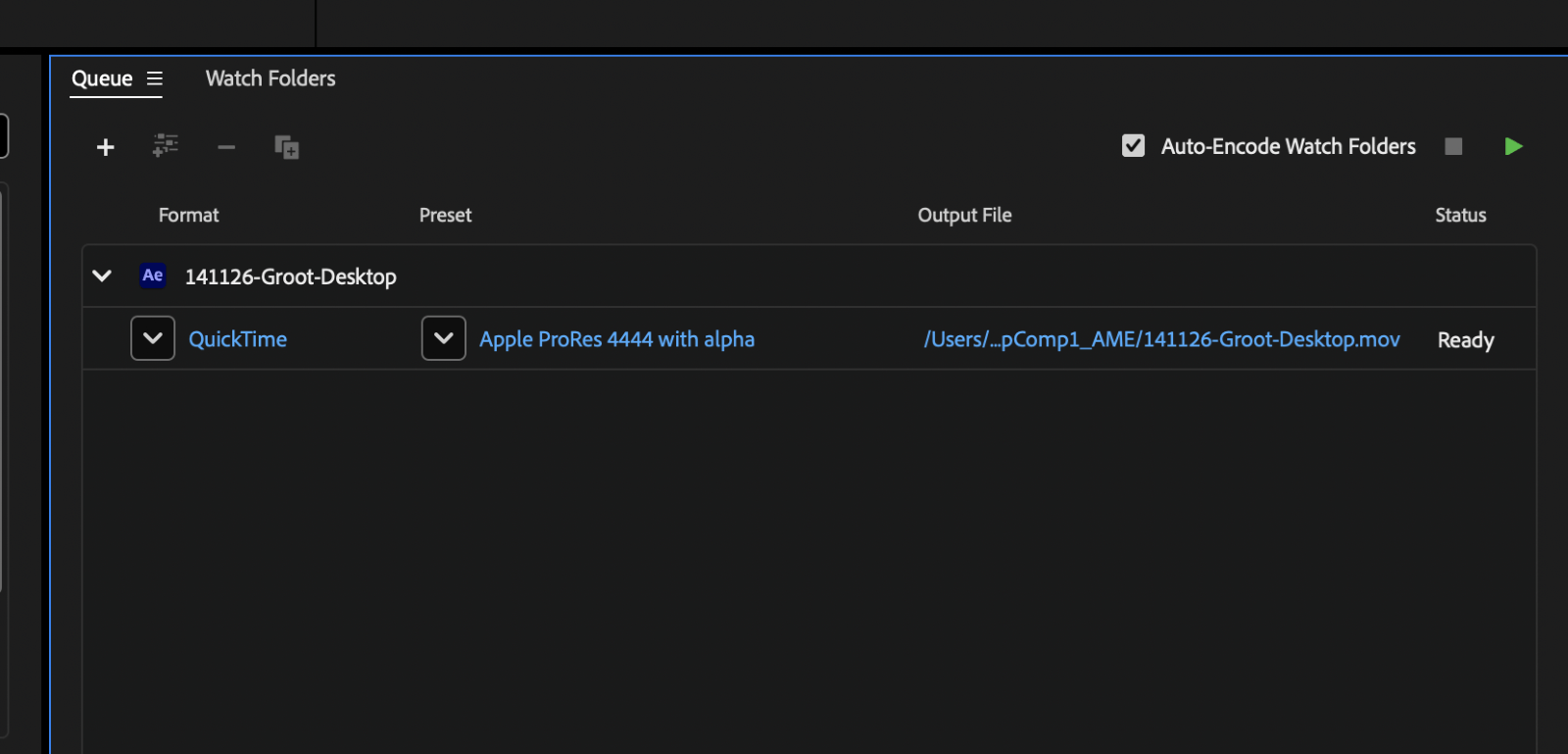
From After Effects, exporting to Adobe Media Encoder, select QuickTime formatting and export to an RGB format with Alpha (in this case, Apple ProRes 4444 with alpha):
Rotato Conversion Anchor ()
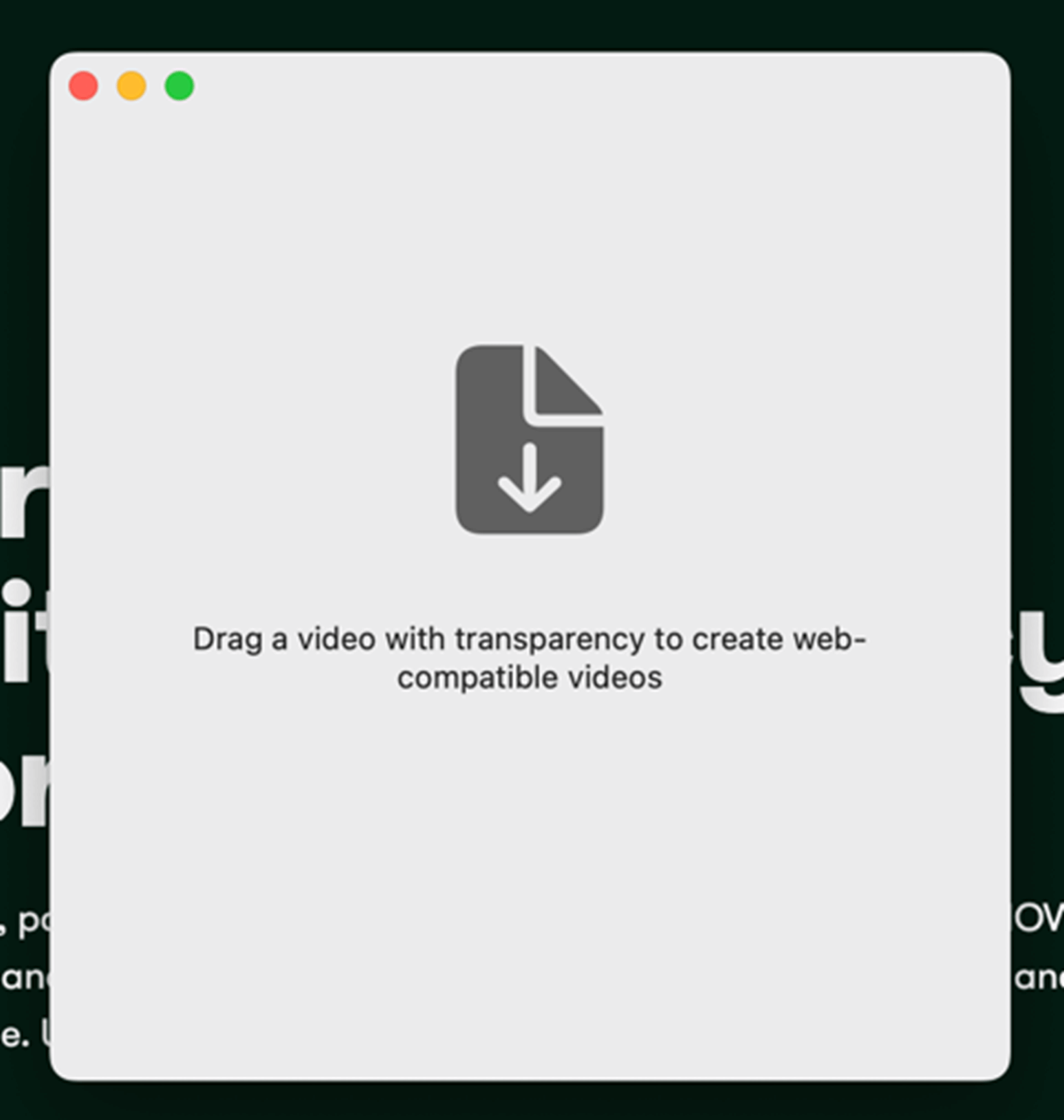
With the transparent MOV file exported, you can then convert it for web use by using the Rotato converter, which is a free download.
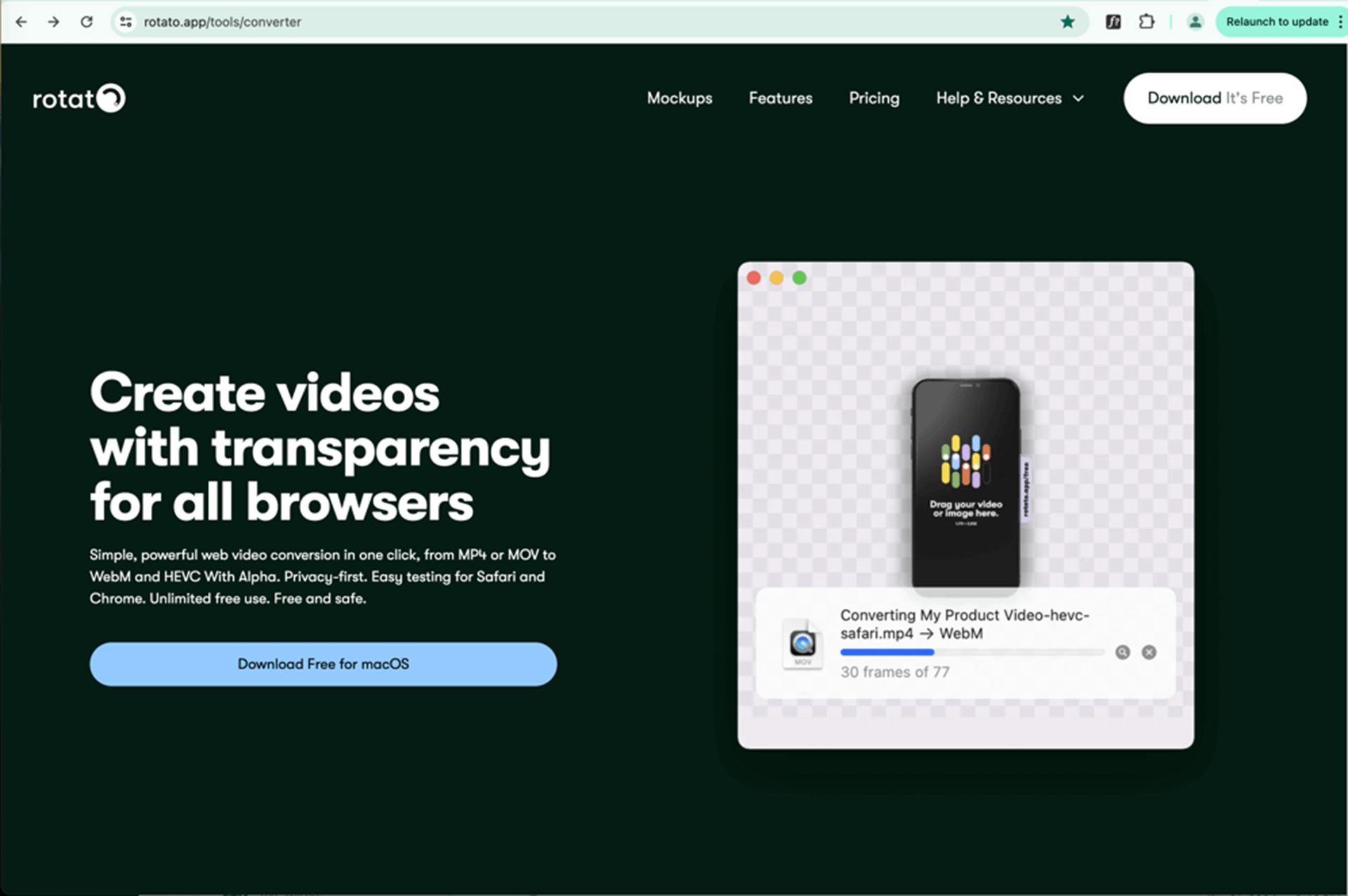
Once downloaded, the app appearance in your dock looks like this:
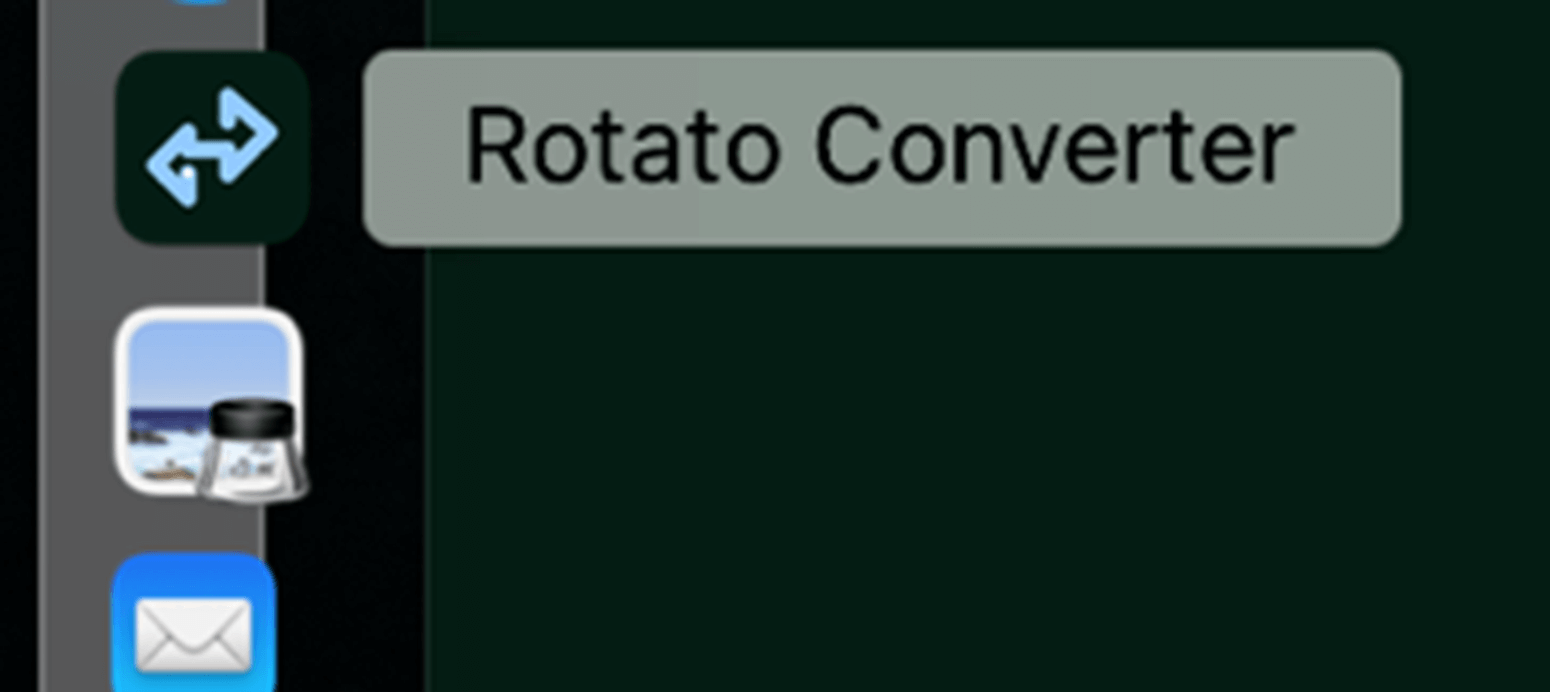
Opening the app, the screen is very simple and dragging the transparent MOV to it will begin the conversion process:
Testing Your Video Anchor ()
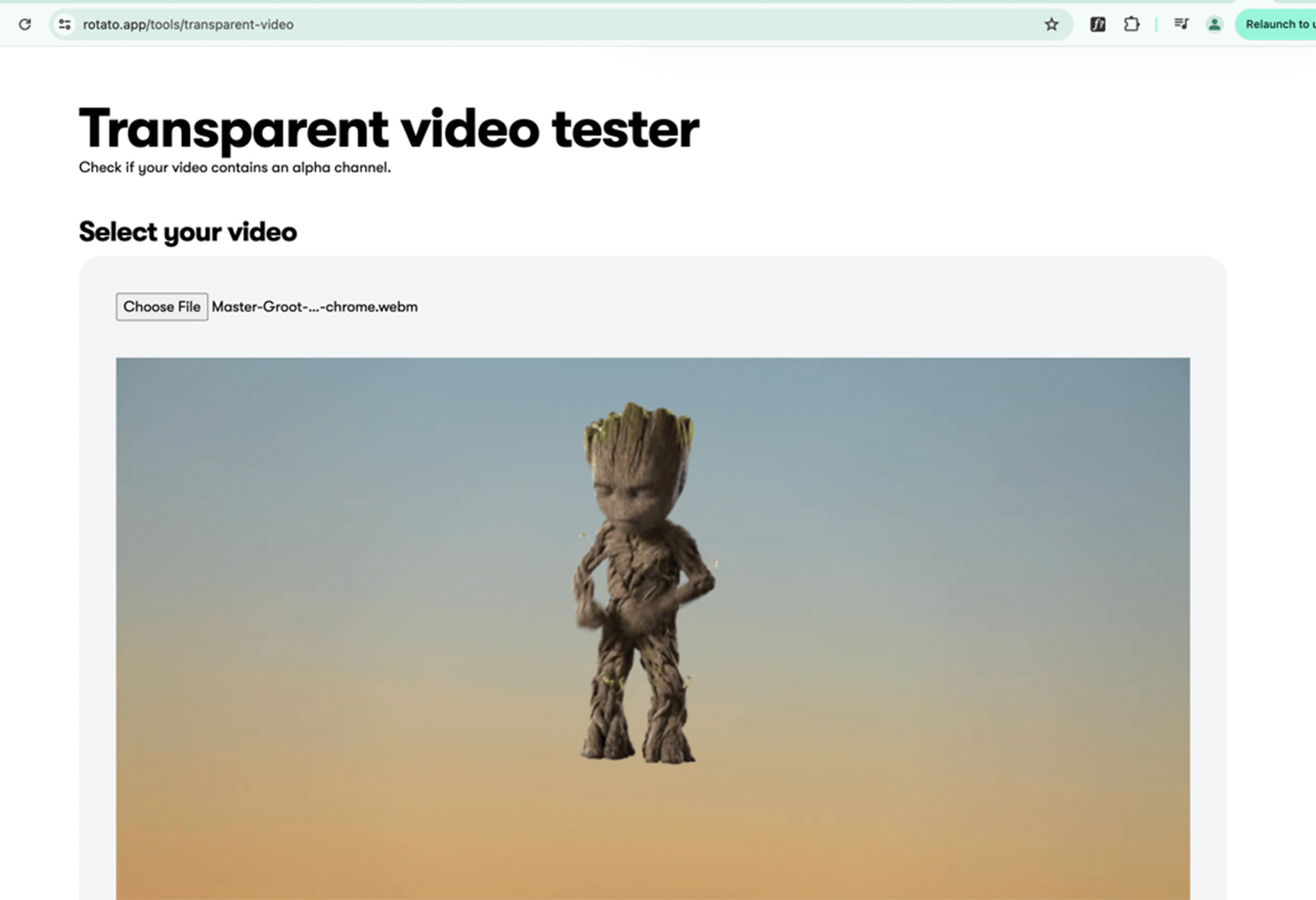
Once converted, you can launch the test windows in Chrome or Safari from Rotato with a button click, or go directly to the URL in each browser by visiting https://rotato.app/tools/transparent-video and then select the appropriate generated file. These files will be the name of your original video file with -hevc-safari.mp4 and -vp9-chrome.webm added, automatically appearing in the same folder location as your original MOV file. Now, both are ready to use on the web and can be sent to development to implement, but there are some additional considerations to be mindful of before doing so.
Additional Considerations Anchor ()
If your video isn't intended to be confined within a defined box or area with clear edges, starting it abruptly from behind a hard edge can present issues if you aim for a consistent appearance across all devices. Instead, within After Effects, you can implement a fade-in at the beginning and a fade-out at the end of the animation.
Moreover, a transparent video with some width, such as a character running for a moderate distance before vanishing, works well on both large monitor devices and handheld devices. However, on handheld devices, the entire width of the transparent video will be scaled down to fit, potentially resulting in tiny content. To address this, create a mobile version of the same video with a narrower canvas and adjusted fade-in/out points. Export this as a transparent MOV file, then convert it using Rotato to generate webm and hevc files suitable for cross-browser, mobile viewing. These files can then be provided to your developer.
Code Anchor ()
Finally, to get all our different alpha-transparent videos set up to render properly across different browsers, hvc1 for Safari and webm for everything else, we use the HTML5 video element to pass in different source MIME types for each version and can also leverage the newly added support for inline media queries on video, using the media attribute!
<video autoplay loop muted loading="lazy">
    <source media="(min-width: 46.5em)" src="https://radancy.dev/component-library/animation-toggle/demo-hvc1-lg.mp4" type='video/mp4; codecs="hvc1"'>
    <source media="(min-width: 46.5em)" src="https://radancy.dev/component-library/animation-toggle/demo-webm-lg.webm" type="video/webm">
    <source src="https://radancy.dev/component-library/animation-toggle/demo-hvc1-sm.mp4" type='video/mp4; codecs="hvc1"'>
    <source src="https://radancy.dev/component-library/animation-toggle/demo-webm-sm.webm" type="video/webm">
</video>
You can also see this in action in our component library and on Disney's newly launched careers site (scroll down).
And that's all it takes! Animated, alpha-transparent, live action video and the client was thrilled! w00t! Big shout out to Michael Spellacy for his technical brilliance in coming up with the idea to begin with and his coding implementation behind it.
Happy animating!